How to Use VN Template Code – VN QR Code Scan Karne Ka Step-by-Step Guide (2026)
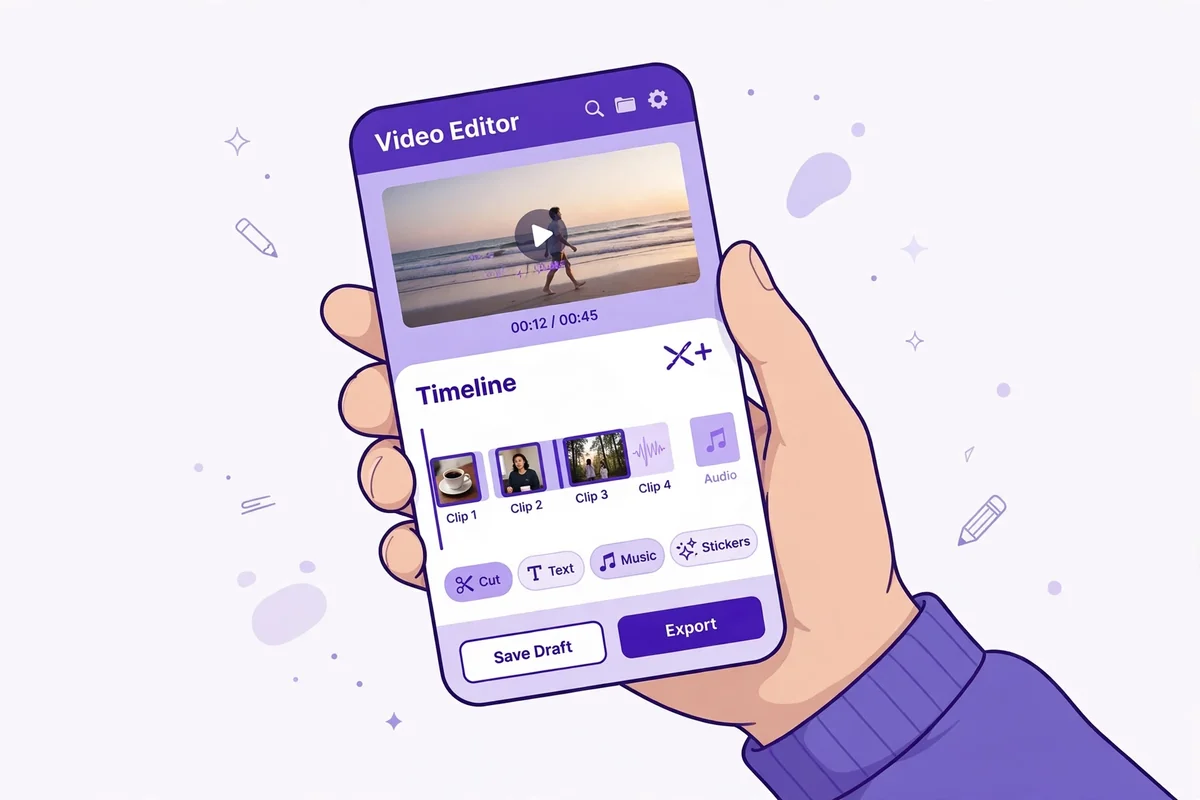
A VN template code is a QR code that imports a ready-made video edit into the VN Video Editor app. Instead of cutting clips, adding transitions and syncing beats yourself, you scan the code, drop in your own photos or videos, and export a finished Reel. This guide explains how to use a VN template code step by step, so any template post on this site works for you in a few minutes.
What you need before you start: the VN Video Editor app (free, Android and iOS), the template’s QR code saved on your phone (screenshot or downloaded image), and the photos or video clips you want in your edit, picked in advance.
How to Scan a VN Template Code (7 Steps)
- Install or update VN Video Editor from the Google Play Store or Apple App Store. Older app versions sometimes cannot read newer template codes, so update first.
- Save the template QR code. On the template post or video, screenshot the QR frame or download the QR image to your gallery. Do not crop it — a cut-off QR will not scan.
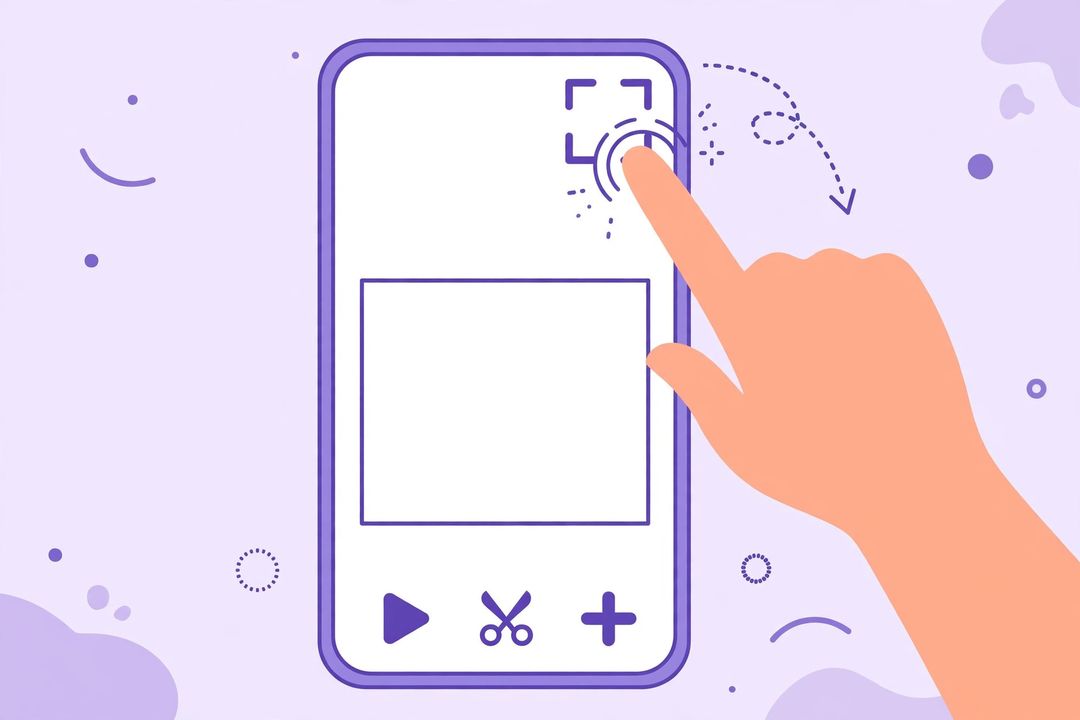
- Open VN and tap the scan icon. On the VN home screen, tap the scan icon at the top-right corner (on some versions, tap the three dots menu and choose the scan option).
- Choose the QR image from your gallery. Tap the gallery/album icon in the scanner and select the saved QR image. VN will read it and load the template project.
- Tap “Use Template”. VN opens the template timeline with empty slots showing how many photos or clips it needs and how long each one should be.
- Add your photos or video clips in order. Select them from your gallery in the sequence you want them to appear. Keep the template’s own music and timing at first — change text (like a name) if the template allows it.
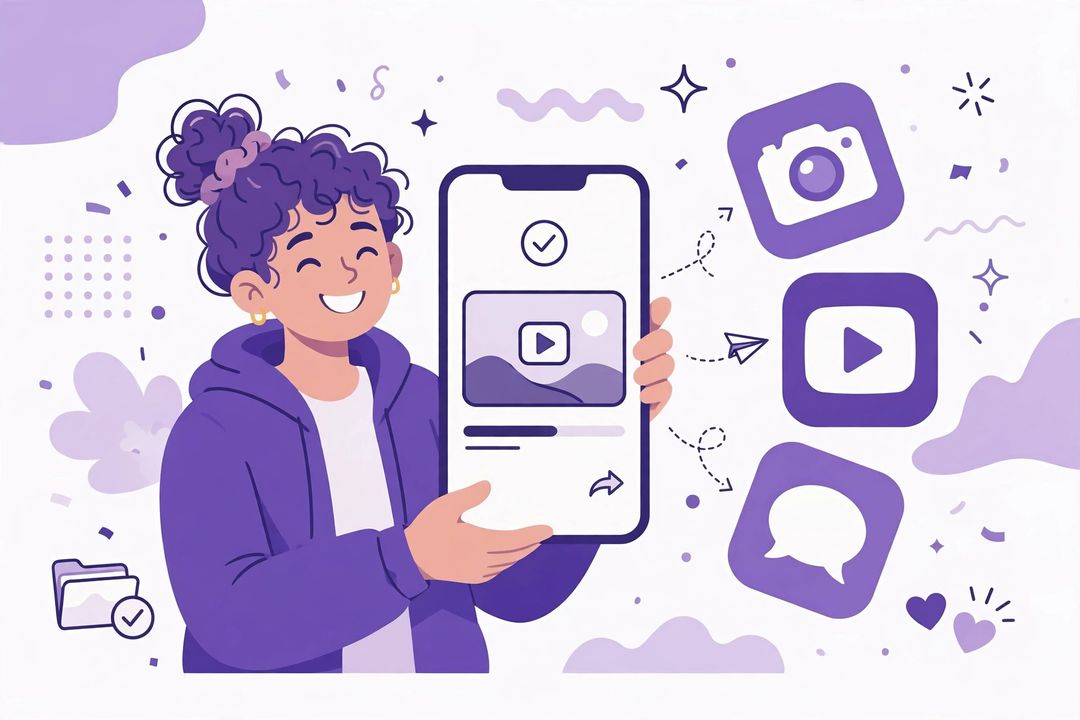
- Preview, then export. Watch the full preview once, check that no face is awkwardly cropped, then export in 1080p. VN exports without a watermark, so your Reel is ready to post on Instagram, YouTube Shorts or WhatsApp Status.
Tips for a Better VN Template Edit
- Use high-quality photos. Blurry or low-resolution photos stay blurry after export — pick sharp, well-lit originals.
- Follow the slot order. The first slot is usually the opening shot and the last slot the closing shot; swapping them changes the whole feel of the edit.
- Keep the original audio first. Templates are beat-synced to a specific song. If you replace the audio, the cuts will no longer land on the beats.
- Fix cropping before export. If a photo is cut off in a slot, tap that clip and use Crop or Replace to reframe it.
VN Template Code Not Scanning? Quick Fixes
- QR looks blurry or cropped: re-download or re-screenshot the QR at full brightness, without zooming or cropping the edges.
- Nothing happens after scanning: update VN to the latest version, then try again; also allow VN access to your photos, so it can read the image from your gallery.
- Template loads but clips look wrong: you probably added fewer clips than the template needs, or in the wrong order — re-import and add the exact number of clips the template asks for.
- Export quality looks low: export at 1080p and check that your source photos were not compressed copies from WhatsApp Status or a chat forward.
VN Template Code vs CapCut Template — Which Is Easier?
Both do the same job: one-click edits from a ready template. CapCut templates open from a link inside the CapCut app, while VN templates open by scanning a QR code image. VN’s big advantage is its free, no-watermark export; CapCut’s advantage is a larger in-app template library. If you already use VN, stick with VN codes — and if you want CapCut birthday templates instead, see our Birthday CapCut Template post.
Try a VN Template Now
Now that you know the steps, try them on a real template: our Baby Boy Birthday VN Template Code and Baby Girl Birthday VN Template Code posts use a Happy Birthday VN template with 9 photo slots — perfect for a first birthday Reel. Every future VN template post on this site will link back to this guide, so you will never need to relearn the steps.
Frequently Asked Questions
Is a VN template code free?
Yes — the VN app is free, and the template codes shared on this site link to free templates. VN also exports without a watermark.
Do I need an internet connection to use a VN template code?
You need internet to download the template’s music, transitions and effects the first time it loads. After that, editing itself works offline.
Can I change the song in a VN template?
Yes, after importing you can replace the audio on the timeline — but the beat-synced cuts were timed to the original song, so the edit may feel off-beat with a new track.
Does VN work on both Android and iPhone?
Yes, VN Video Editor is available on both the Google Play Store and the Apple App Store, and the same scan steps work on both.
Which VN template should we cover next — a song trend or another birthday template? Tell us in the comments.