How to Use Meta Muse in India (2026): Claim 1 Billion Free Tokens
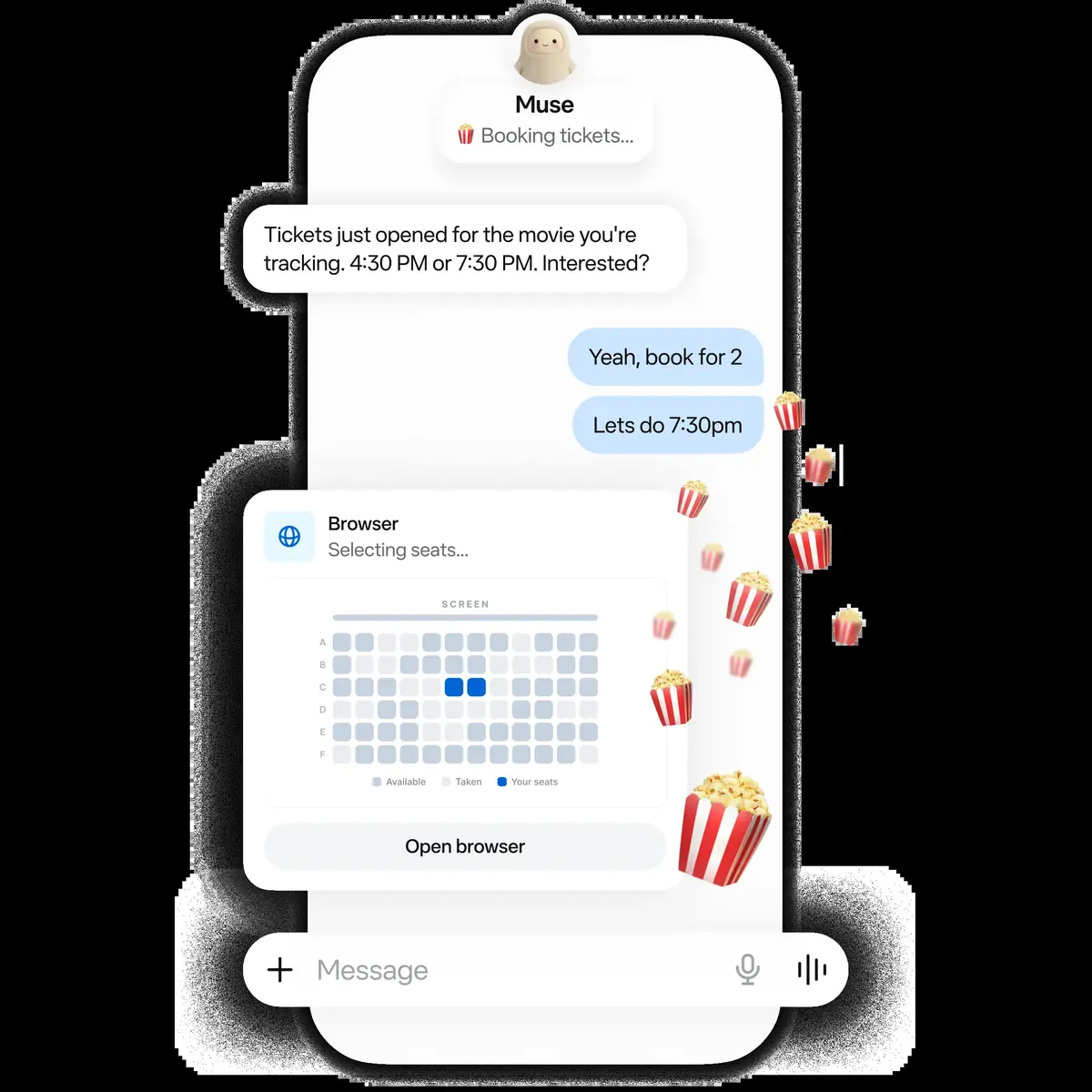
Meta has launched something very different from a normal chatbot. Meta Muse is a personal AI agent — you give it a task, and it does the work for you in the background on its own cloud computer. It can browse the web, fill forms, manage your files, connect to apps like Gmail, Google Calendar and Instagram, and keep working even after you close the app.
There is only one problem: Meta Muse is officially available only in the United States. But don’t worry — there is a simple workaround to use it from India, and right now you can also claim 1 billion free tokens with an invite code. I use Muse myself every day to run this website, so in this guide I will show you the exact steps, the safety rules, and the one deadline you must not miss.
Watch: How to Use Meta Muse in India (Video Guide)
What Is Meta Muse?
Most AI tools like ChatGPT only answer your questions. Muse goes one step further — it actually performs the task. Ask it to research a topic, prepare a document, watch a price, or fill a form, and it will work on its own cloud computer until the job is done.
Three things make Meta Muse different from other AI assistants:
- It works in the background: Give Muse a task and close the app. The work continues on Meta’s cloud computer, not on your phone or laptop.
- It has its own computer and browser: Every user gets an isolated cloud computer (called Muse Secure VM) with a full browser. You can watch the agent work live, and take control whenever you want.
- It connects to your daily apps: Gmail, Google Calendar, WhatsApp, Instagram, Facebook and more can be connected, so Muse can actually act inside the apps you already use.
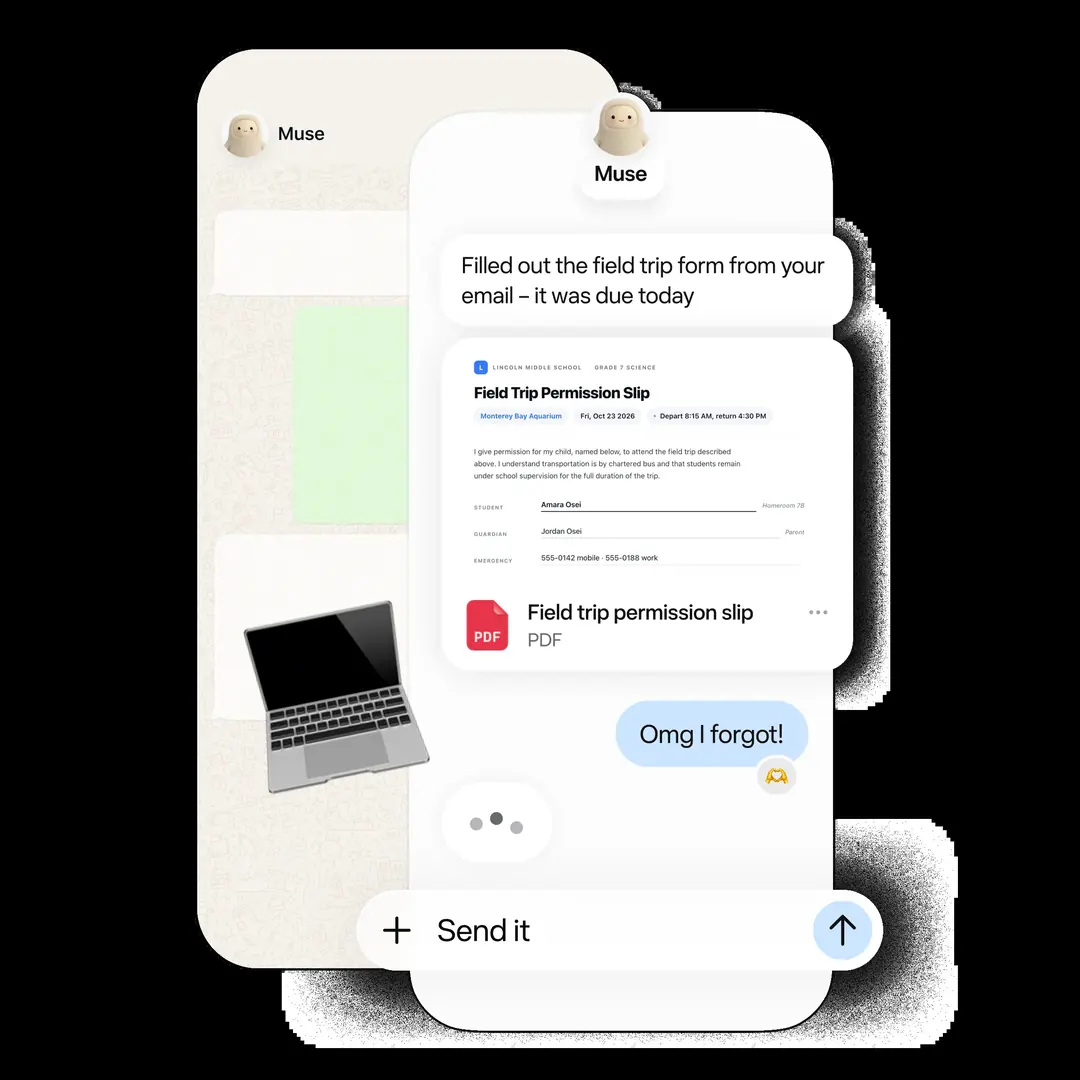
If a feature or tool is missing, Muse can even build small tools of its own to finish your task. In short, it is less like a chatbot and more like a digital assistant who has his own desk, computer and browser.
Is Meta Muse Available in India?
No. As of now, Meta Muse works only in the US. If you open muse.ai from India and try to register normally, you will not get in. That is why the method below uses a VPN to register through a US connection. It is a workaround, not an official route — so read the safety section before you start, and decide for yourself.
What You Need Before Starting
- A reliable VPN with a US server. Avoid unknown free VPN apps — they get flagged quickly and can get your fresh account blocked.
- An email ID for registration. Use email only — an Indian mobile number (+91) can get flagged during signup.
- A Facebook or Instagram account for age verification. There is also a card option ($1, refundable), but Indian cards may get flagged, so a social account is the safer route.
- An invite code — without it, you don’t get the 1 billion free tokens. You can use mine below.
How to Use Meta Muse in India: Step-by-Step
Step 1: Connect Your VPN to a US Server
Open your VPN app and connect to any US server. Stay connected to the same server during the full registration process — disconnecting or changing cities midway can get the account flagged.
Step 2: Register on muse.ai
With the VPN on, open your browser and go to muse.ai. Enter your email address and click Continue. You will get a verification code on your email — enter it and confirm. Next, enter your date of birth. Make sure it matches the date of birth on your Facebook or Instagram account, otherwise verification can fail later. On the “A few things to know” screen, click Get Started.
Step 3: Verify Your Age with Facebook or Instagram
Muse will ask you to confirm your age. You get three options: a debit/credit card ($1 refundable charge), linking your Facebook account, or linking your Instagram account. Choose Link Facebook Account (or Instagram), log in, and click Continue and Confirm. Your Meta Muse account is now created.
Claim Your 1 Billion Free Tokens (Don’t Miss the Deadline)
Here is the most important part of this guide. The free tokens are given only when you redeem an invite code, and Meta allows this only within 48 hours of creating your account. Miss that window and the bonus is gone permanently — so do this immediately after signup.
Use this invite code:
Similar Posts
5 Best Free AI Tools in 2026 You Should Try (100% Free)
A new AI tool launches every week, and almost all of them wear a big “Free” badge. The problem: “free” means something different everywhere. In one place it means a daily allowance; in another, it is a one-time trial that runs out in two days. So for this list, I checked every detail against each…
How to Make YouTube Thumbnail on Mobile Free – Step-by-Step Guide
On YouTube, the video does not get the first chance — the thumbnail does. A viewer scrolling on their phone decides in one second, and that decision is made almost entirely by your thumbnail and title. The good news: you do not need a laptop, Photoshop, or money. Your phone and one free app are…
Gemini AI Photo Prompts – 30+ Best Prompts to Generate Stunning Photos (2026)
Gemini (with Nano Banana) can generate a photo from words alone — no camera, no editing app. These Gemini AI photo prompts are ready-made generation prompts: copy one, paste it in Gemini, and download a brand-new photo in seconds. Below are 30 copy-paste prompts — cinematic portraits, couples, festivals, fantasy scenes and everyday aesthetics —…
Free Online Tools – 17 PDF, Image & QR Tools (No Sign-Up, No Upload)
Converting a PDF, merging two files, or making a QR code sounds like a 2-minute job — until the website you open asks you to create an account, shows a file-size limit, or uploads your personal document to a server you know nothing about. So we built our own. Pushpendra Tech Tools is a set…