How to Make YouTube Thumbnail on Mobile Free – Step-by-Step Guide
On YouTube, the video does not get the first chance — the thumbnail does. A viewer scrolling on their phone decides in one second, and that decision is made almost entirely by your thumbnail and title. The good news: you do not need a laptop, Photoshop, or money. Your phone and one free app are enough, and this guide shows the complete process — including the one setting most new creators miss completely, because of which the “custom thumbnail” option never appears for them at all.
Step 0 (The Step Everyone Misses): Verify Your YouTube Account
Custom thumbnails are not available to every channel by default. YouTube’s own help page says you can upload your own thumbnail only if your account is verified. It is a one-time, free process:
- On your phone browser or computer, open youtube.com/verify
- Enter your mobile number and choose how to receive the code — text message or voice call
- Enter the 6-digit code you receive
Done. This one verification also unlocks videos longer than 15 minutes and live streaming. If the code does not arrive, request a new one or choose the voice-call option — YouTube itself suggests this.
The Correct Thumbnail Size (Updated — Most Blogs Print the Old One)
Almost every blog still tells you “1280×720, 2MB.” YouTube’s current official help page has moved on:
- Recommended resolution: 3840 × 2160 pixels — “as large as possible,” because the same image is used as the preview everywhere
- Minimum: 640 pixels wide
- Formats: only JPG or PNG
- File size: uploading from your phone — maximum 2 MB (the 50 MB limit applies to desktop uploads)
What this means practically: Designing at 1280 × 720 (the standard size in the Canva app) is perfectly fine — it is well above YouTube’s minimum. Just make sure your final file exported from your phone stays under 2 MB, and choose JPG if PNG makes the file too heavy.
Make the Thumbnail in Canva (Free)
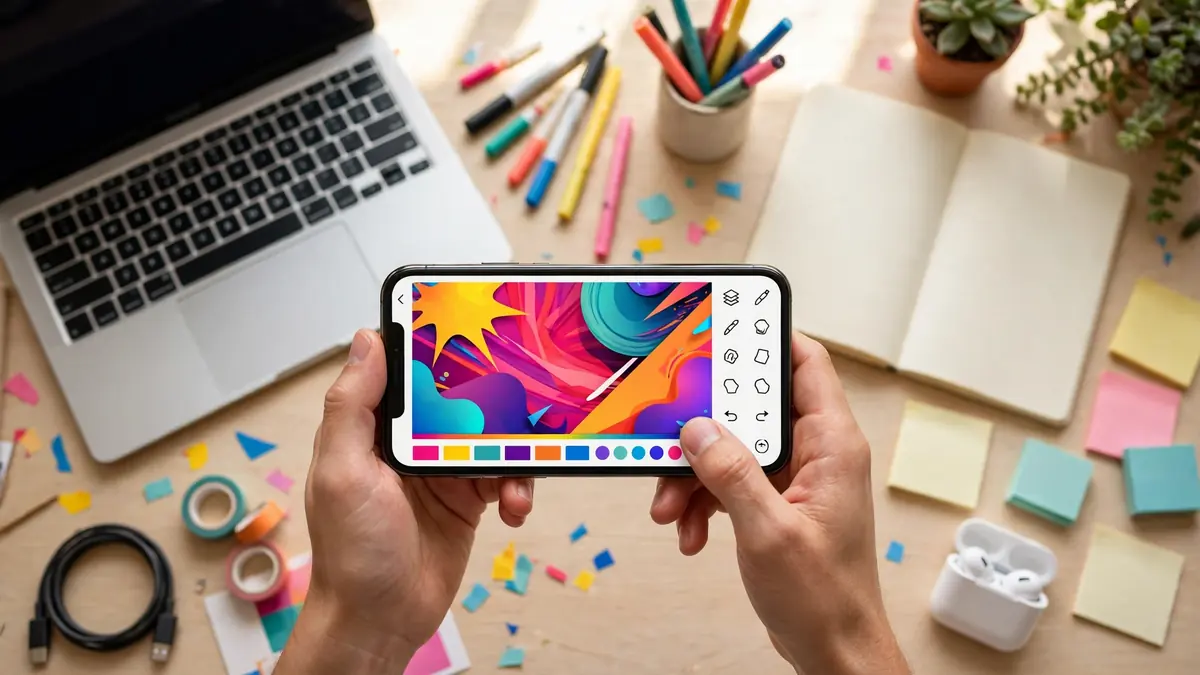
- Open the Canva app and sign in with a free account
- In the search bar, type “YouTube Thumbnail” and open that design type — the canvas opens at the correct size automatically
- Pick a template — for a fully free export, choose templates and elements without the small crown icon (the crown means Pro/paid; see the watermark note below)
- Tap the template’s photo and replace it with your own photo (Uploads → upload from your phone) or a clear frame from your video
- Tap the headline text and write your own short, big, readable title text — it should add curiosity, not repeat the video title word-for-word
- Adjust the photo’s brightness and contrast a little so the face and text stand out clearly (Canva’s own design advice)
- Tap the Export (share) icon → Download → choose PNG for best quality (or JPG for a smaller file) → the thumbnail saves to your phone gallery
The Watermark Truth
Canva’s free plan does not put a watermark on a normal design. A watermark appears only if your design contains a Pro (crown-marked) photo, element or template that you have not licensed. The fix is simple and free: replace that one element with a Free one, and download again. One popular feature that genuinely is paid-only is the one-click Background Remover — it is a Canva Pro feature, so on the free plan, choose photos with backgrounds you are happy to keep.
Add the Thumbnail to Your Video (Official Steps)
Using the YouTube Studio app:
- Open the app and tap Content
- Select your video
- Tap Edit, then Edit thumbnail
- Tap Custom thumbnail and pick the image you downloaded
- Tap SELECT, then SAVE
YouTube notes that thumbnail changes can take some time to appear everywhere — so don’t panic and re-upload repeatedly if it does not refresh instantly. Two more official cautions: there is a daily limit on how many custom thumbnails a channel can change, and for Shorts, custom thumbnails can currently only be added from YouTube Studio on a computer, not from the phone.
5 Design Rules That Actually Get Clicks
These are practical design rules (Canva’s own published guidance, plus what consistently works):
- One idea per thumbnail — a face or an object, big and clear; never a crowded collage
- Readable text — clean bold font, few words, readable even on a small phone screen
- Strong contrast — bright subject against a darker or opposite-colour background
- Be honest — Canva and YouTube both stress that the thumbnail must reflect the real video; misleading thumbnails break trust, and thumbnails that break YouTube’s community guidelines can be rejected and can even earn your channel a strike
- Match your style — using similar colours/fonts across videos makes your channel recognisable in a crowded feed
FAQ
What is the best free app for YouTube thumbnails on a phone?
Canva is the easiest complete option: free thumbnail templates at the correct size, your own photos, and clean watermark-free downloads as long as you use free elements.
Why don’t I see the “Custom thumbnail” option?
Your account is almost certainly not verified yet. Complete the one-time phone verification at youtube.com/verify (Step 0 above) and the option appears.
What size should my YouTube thumbnail be?
Design at 1280 × 720 or larger (YouTube now recommends up to 3840 × 2160), keep the aspect ratio 16:9, use JPG or PNG, and keep the file under 2 MB when uploading from a phone.
Can I change the thumbnail of a Shorts video from my phone?
Currently no — YouTube allows custom Shorts thumbnails only through YouTube Studio on a computer.
Making videos regularly? You will also like our guide to making a professional AI profile photo with Gemini and our list of genuinely free AI tools for creators.